New User Onboarding Guide
Last updated: June 11, 2026
Getting Started with Salesfinity

Welcome to Salesfinity. This guide walks you through everything you need to start making dials — connecting your data, adding your phone numbers, and choosing how you want to dial. First-time setup takes about 15 minutes, and by the end you'll be live and calling.
There are three steps:
Connect your data — integrate your CRM/tech stack or upload a list
Add your phone numbers
Choose your dialing mode and start dialing
Step 1: Connect your data
Before you can dial, Salesfinity needs to know who you're calling. You have two options.
Option A — Integrate your tech stack
Salesfinity connects directly to the tools you already use, including HubSpot, Salesforce, and Salesloft.
Log in and click Import Contacts on the home screen.
Choose your integration from the list.
Connect your call task source and select your name.
Turn on Fill Dispositions with AI.
Click Save.
That last step matters — if you don't hit Save after setting up your integration and dispositions, it won't connect properly. Once saved, you'll see your call tasks and lists ready to work from.
Can't connect? Your access may be locked. Ask a Super Admin on your team to unlock it for you.
How the integration works: parent and child
Think of your tech stack — Salesforce, HubSpot, Salesloft — as the parent, and Salesfinity as the child. Salesfinity works off of whatever your native integration allows. If an action can't happen inside that native integration, it won't happen in Salesfinity either.
📺 Watch: Getting started with integrations
Option B — Upload a CSV
Prefer to work straight from a list? You can upload a CSV directly. See the How to upload a CSV article for step-by-step instructions.
Step 2: Add your phone numbers
Every user gets 10 phone numbers — and you'll want to use all 10 (more on why below).
Click the phone number dropdown at the top of the screen.
Select Manage Numbers.
From here you have two ways to add numbers:
Auto Pick (recommended if you're not sure where to start) Salesfinity automatically assigns the 10 area codes with the highest pickup rates we're seeing across the platform.
Add manually by area code If you know the territories you're calling into, type in the area code and choose a number from the list. Numbers are first come, first served — if one isn't available it won't populate, so just try another.
Why all 10?
If you dial 80 people in an hour from a single number, carriers will flag it. The more numbers you have in rotation, the cleaner they stay — and the longer they hold their standing.
Turn on Smart Rotate
Head into Dialer Preferences and toggle on Smart Rotate. It automatically cycles through your numbers every five dials, so no single number gets overused in a session. This is exactly why having all 10 numbers matters.
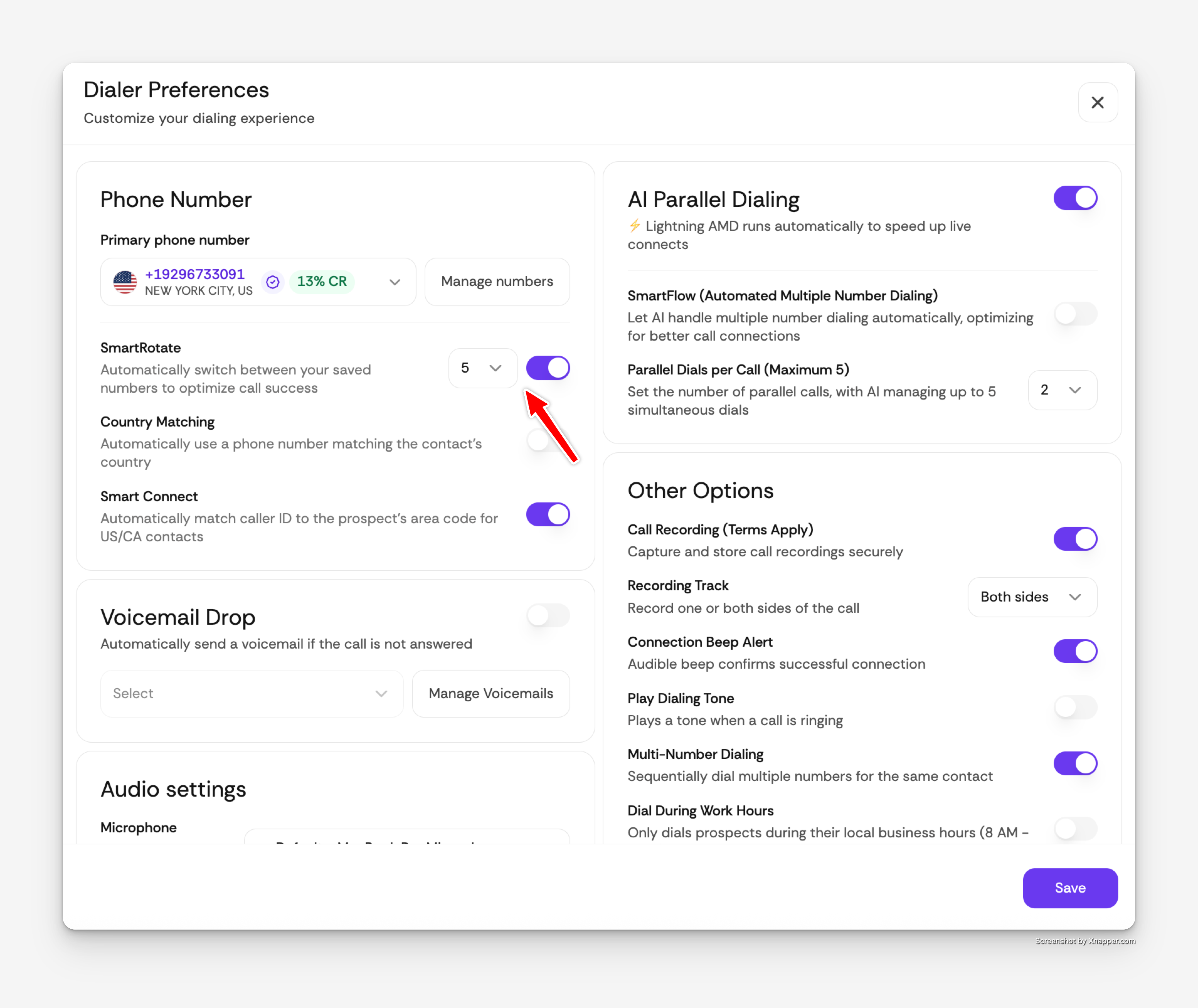
SmartConnect (optional)
Just below Smart Rotate you'll find SmartConnect — area code matching. If your connect rates are better when your number matches your prospect's area code, turn it on. Hit Save and you're set.
📺 Watch: Setting up your phone numbers
Step 3: Choose your dialing mode and start dialing
Open your Dialer Preferences to pick how you want to dial. Salesfinity gives you two modes.
Power dialing — one at a time
The closest thing to standard manual dialing. You call one person at a time, and power dialing does not skip voicemails automatically. When you hit a voicemail, you'll disposition the call before moving to the next one.
Speed tip: You don't have to disposition every voicemail manually. Use the keyboard shortcut — Cmd + L on Mac, Ctrl + L on Windows — to mark the call as No Answer and jump straight to the next one. Build it into muscle memory to keep things moving.
Parallel dialing — up to 5 at once
Parallel dialing uses AI to detect whether each answer is a real person or a voicemail:
Real person → you're connected, and you'll hear the connection beep.
Voicemail → it skips automatically and moves to the next call.
You can dial 1 to 5 people at a time. To adjust, click the dropdown next to the parallel dialing toggle and choose how many you want to dial at once.
New to parallel dialing? Start at 2. Get comfortable with the rhythm before you open it up to 5.
📺 Watch: Power dialing vs. parallel dialing explained
You're ready to dial 🎉🎉🎉
That's it — data connected, numbers added, and your dialing mode set. Pick a list and start calling.
Common questions
Why do I need all 10 phone numbers? Carriers flag numbers that make high volumes of calls in a short window. Spreading your dials across all 10 numbers — with Smart Rotate cycling them every five dials — keeps each number clean and helps it hold its standing longer.
My integration won't connect. What do I do? Your access is likely locked at the account level. Reach out to a Super Admin on your team and ask them to unlock integration access for you.
Why isn't my data showing up in Salesfinity? Remember the parent-child relationship: Salesfinity reflects what your native integration (Salesforce, HubSpot, Salesloft) allows. If something isn't appearing, confirm it exists and is permitted in that source tool first.
Should I use power dialing or parallel dialing? Power dialing mirrors traditional one-at-a-time manual dialing and gives you the most control. Parallel dialing lets you dial up to five people at once and uses AI to skip voicemails for you, so you spend more time talking to real people. If you're new, start with parallel set to 2 and scale up as you get comfortable.
Do I have to hit Save? Yes. After setting up your integration and dispositions — and after adjusting your dialer preferences — always click Save, or your settings won't apply.