How to Re-Dial a Previously Called List (CSV)
Last updated: June 2, 2026
After you've finished dialing through a list, you can re-import it and use filters to target only the contacts you want to call again — such as those who didn't answer or were not reached.
Step 1: Re-Import Your List
Navigate to Import Contacts, found on the right-hand side of the screen. From there, re-import your CSV list.
Step 2: Filter by Disposition
Once the list is imported, use the Filters panel to narrow down which contacts you want to dial. You can filter by Disposition to include or exclude contacts based on how they were previously marked.
For example:
To exclude contacts you've already successfully reached (e.g., booked a meeting, answered), set the Disposition filter to not equal to those dispositions.
To exclude contacts marked as "Wrong Contact," "Do Not Call," or "Not Interested," filter Disposition to not equal those values.
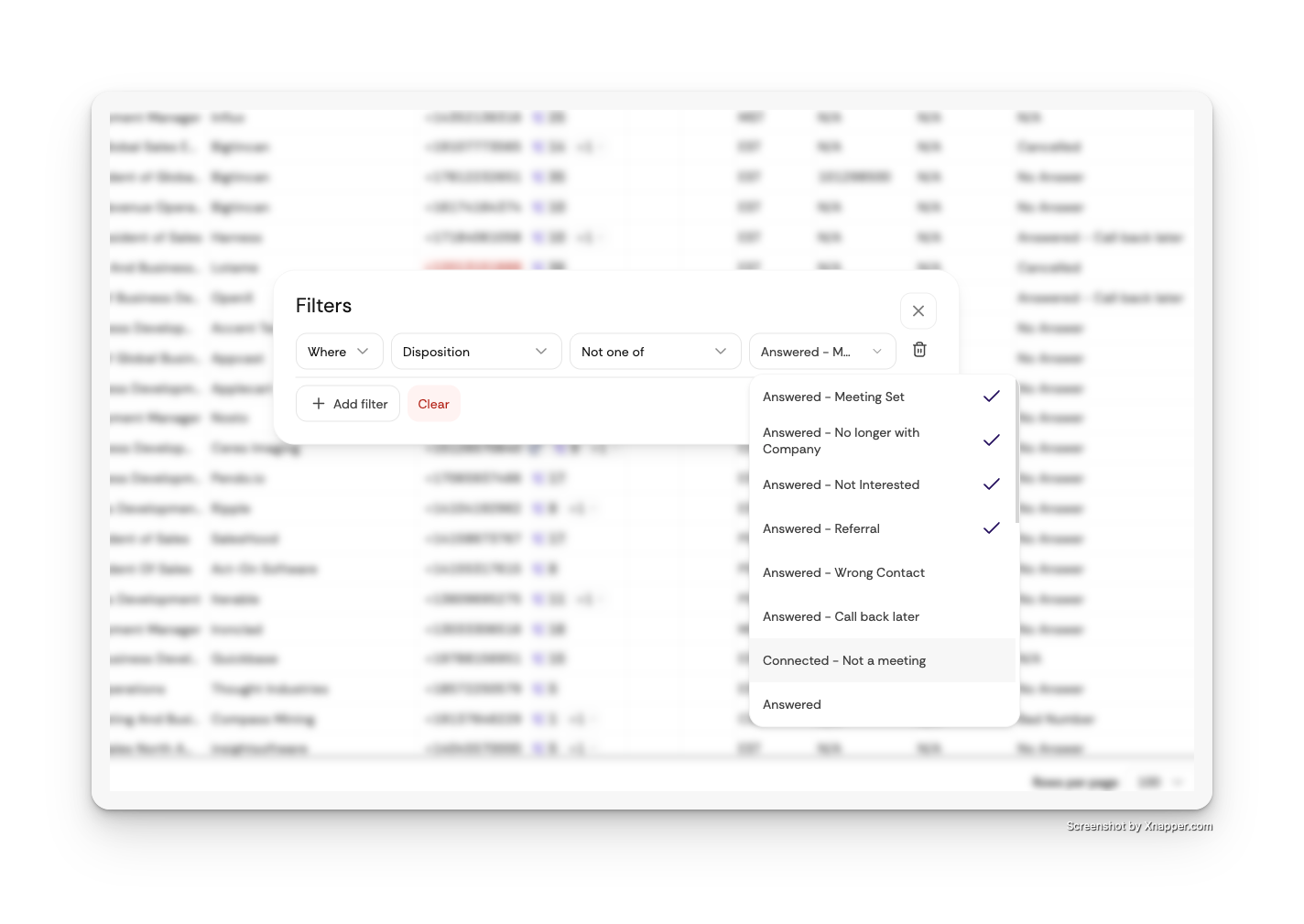
This ensures you're only viewing and dialing the contacts relevant to your current campaign run.
Note: Re-importing a list will include all contacts from the original file, including those with dispositions like "Wrong Contact" or "Do Not Call." Be sure to apply the appropriate filters to exclude any contacts you do not want to call.