Smart Connect & Country Matching
Last updated: August 17, 2026
Prospects answer local numbers. Salesfinity can pick the best caller ID for every call automatically — rotating between your clean numbers, matching the contact's country, and (on Enterprise plans) matching the prospect's exact area code for US and Canadian contacts. This guide explains each layer and how they work together.
In this article
The three layers of caller-ID matching
Where the settings live
SmartRotate: the foundation
Country Matching
Smart Connect (US/CA area codes)
How the caller ID is picked per call
Spam protection and “Clean” numbers
Availability by plan
Troubleshooting & FAQ
The three layers of caller-ID matching
Salesfinity has three related features that decide which of your phone numbers a prospect sees when you call. They stack — each one refines the previous:
Feature | What it does | Best for |
|---|---|---|
SmartRotate | Automatically switches between your saved numbers after a set number of calls, so no single number gets over-dialed. | Everyone — protects number reputation. |
Country Matching | Uses a caller ID from the contact's country whenever you own a number there. | Teams dialing internationally. |
Smart Connect | Matches the caller ID to the prospect's area code for US and Canadian contacts — down to the exact area code when possible. | US/CA-focused teams that want maximum local presence. |
Country Matching and Smart Connect are refinements of SmartRotate — both require SmartRotate to be turned on, and their toggles only appear once it is.
Where the settings live
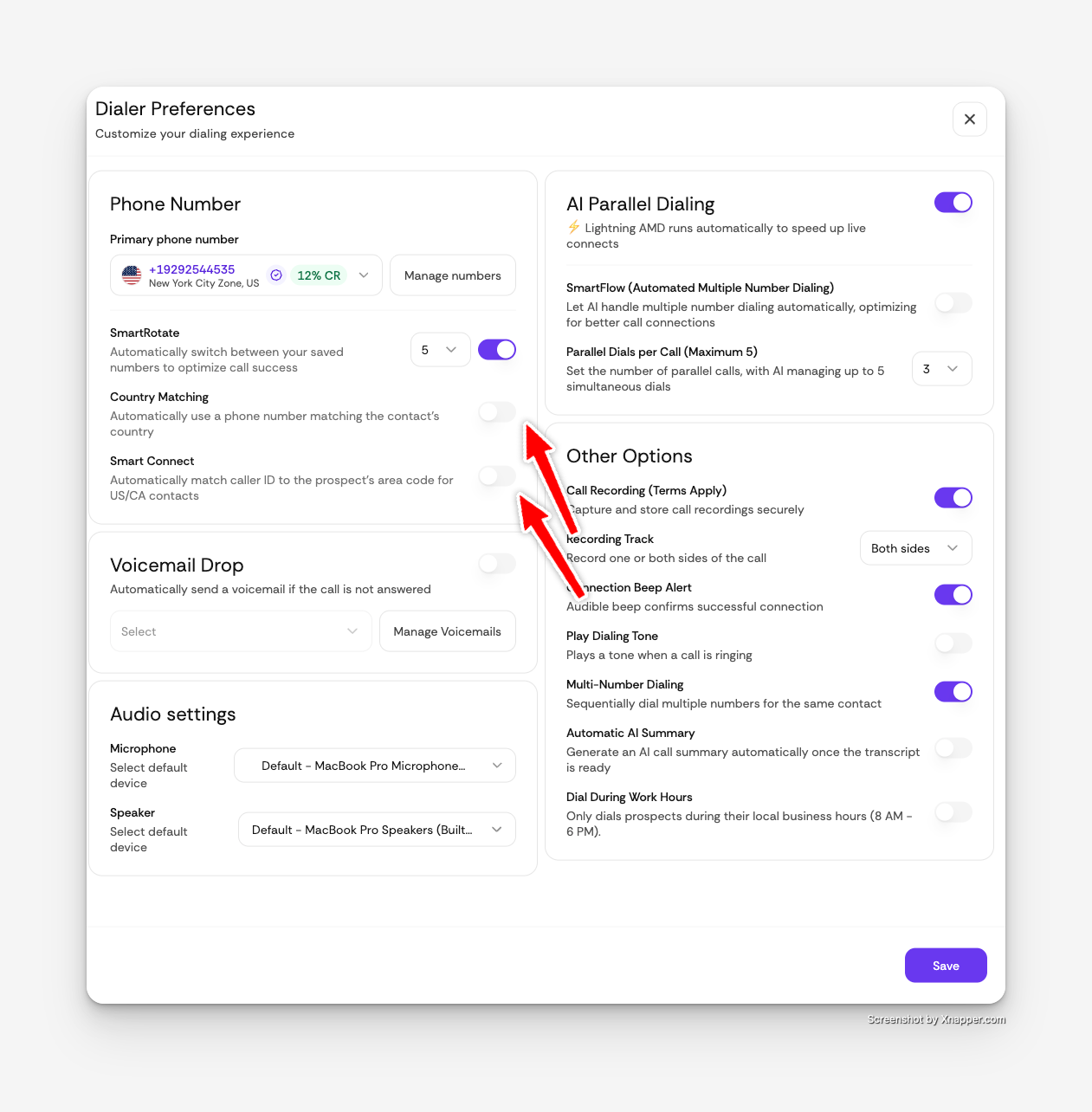
Open dialer preferences
Go to Dashboard → Dialer and open Preferences.
Find the Phone Number section
This is where you select your default outbound number and manage rotation.
Turn on SmartRotate
Pick how many calls each number should make before rotating (5, 10, 15, 20, 25, or 40), then flip the switch.
Enable the refinements you want
With SmartRotate on, two more toggles appear: Country Matching and — on Enterprise plans — Smart Connect. Turn on either or both.
Preferences are per-user, so each rep controls their own rotation settings. They apply to both the parallel dialer and the single-line dialer.
SmartRotate: the foundation
With SmartRotate on, Salesfinity rotates through your saved numbers instead of dialing from one number all day:
The rotation pool is your numbers from the same country as your selected default number, excluding any that carry spam flags.
After the number of calls you chose in max calls per number, the dialer moves to the next number in the pool and the count restarts.
Rotation continues in a loop for the whole session.
Requirement
SmartRotate needs at least 2 clean phone numbers in the same country as your selected default number. With fewer, the toggle is disabled and shows “You must have at least 2 Clean phone numbers to enable this feature.”
Country Matching
When your list mixes countries, dialing every contact from one country's number hurts answer rates — a UK prospect is far less likely to pick up a +1 number. Country Matching fixes that per call:
For each contact, Salesfinity determines their country from their phone number's country code.
If you own clean numbers in that country, the dialer uses the least-used of them — spreading calls evenly so no single number gets overworked. Once every matching number reaches your max-calls setting, the counts reset and spreading continues.
If you don't own a number in the contact's country (or the country can't be determined), the call falls back to normal SmartRotate rotation using your default pool.
Tip
Country Matching is only as good as your number inventory. If you dial the UK, Australia, and Germany regularly, keep at least a couple of clean numbers in each country so matching (and rotation within the match) can work.
Smart Connect (US/CA area codes)
Smart Connect takes local presence one step further for US and Canadian contacts: instead of just matching the country, it matches the caller ID to the prospect's area code. When Smart Connect is on, Salesfinity picks the closest available match for each call, in this order:
Exact area code The caller ID shares the prospect's area code — e.g. calling a (415) number from a (415) number.
Overlay area code An area code covering the same geographic region — e.g. (628) overlays (415) in San Francisco.
Same state / province A number from elsewhere in the prospect's state or province.
Same country A US or Canadian number, when nothing closer is available.
The matching happens automatically at dial time — there's nothing to configure beyond the toggle. Call logs always record the number that was actually used for each call, so your CRM activity stays accurate even when the caller ID varies call-to-call.
Plan availability
Smart Connect is available on Enterprise and Enterprise Plus plans. If you don't see the toggle under SmartRotate, your plan doesn't include it — reach out to your Salesfinity contact to upgrade.
Note
Smart Connect applies to US and Canadian contacts. For contacts elsewhere, use Country Matching — the two features work well together on mixed lists.
How the caller ID is picked per call
Here's the full decision path the dialer runs for every contact, based on which toggles you have on:
Your settings | What the prospect sees |
|---|---|
SmartRotate off | Always your selected default number. |
SmartRotate on | Your clean numbers from the default number's country, rotating after every N calls (your max-calls setting). |
+ Country Matching on | A clean number from the contact's country when you own one (least-used first); otherwise normal rotation. |
+ Smart Connect on | For US/CA contacts: the closest area-code match available (exact → overlay → same state → country). |
Spam protection and “Clean” numbers
Every rotation and matching decision only considers numbers marked Clean — numbers with no spam flags from carrier reputation databases. You can see each number's status in the same Phone Number section of dialer preferences.
A number that picks up spam flags is automatically excluded from rotation pools, so flagged numbers don't drag down your connect rates.
This is also why rotation matters in the first place: spreading call volume across numbers keeps each one's reputation healthy and reduces the chance of being flagged at all.
Availability by plan
Feature | Silver | Gold | Enterprise | Enterprise Plus |
|---|---|---|---|---|
SmartRotate incl. Country Matching | ✓ | ✓ | ✓ | ✓ |
Smart Connect | — | — | ✓ | ✓ |
Troubleshooting & FAQ
The SmartRotate toggle is greyed out.
Two possible reasons, shown in the tooltip: your plan doesn't include SmartRotate, or you have fewer than 2 clean numbers in your default number's country. Add or replace numbers in the Phone Number section to unlock it.
I don't see the Smart Connect toggle at all.
Smart Connect is Enterprise and Enterprise Plus only, and its toggle only appears after SmartRotate is switched on. Check both.
Does Smart Connect work for contacts outside the US and Canada?
No — it's an area-code feature for the North American numbering plan. For international contacts, turn on Country Matching; the two features can run at the same time.
Which number shows up in my call logs and CRM?
The number actually used for that call. Even when Smart Connect or rotation changes the caller ID call-to-call, each call log records the real “from” number.
Do these settings apply to the single-line dialer too?
Yes. SmartRotate, Country Matching, and Smart Connect all apply in both the parallel dialer and the single dialer.
A contact's country isn't being matched.
Country is determined from the contact's phone number country code. If the number is stored without one (no international prefix), matching can't identify the country and that call falls back to normal rotation. Store numbers in international format for best results.
Will rotation use a number that's been flagged as spam?
No. Numbers with spam flags are excluded from every rotation and matching pool automatically. Replace flagged numbers to keep your pool healthy.