Customize Your Analytics Team View
Last updated: June 22, 2026
If you manage more than a handful of reps, your analytics dashboard can get noisy — you're looking at the whole org when all you really want is your pod, your region, or your segment. Saved Views fixes that. You can group any set of reps into a named view, switch between those views in one click, and set a default so the right group loads every time you open analytics.
Setup takes about 30 seconds, and you only have to do it once per view.
There are three things to know:
Build a view — select the reps you want and save the selection
Set a default — star the view you check most so it loads automatically
Switch views — jump between segments in one click
Where to find it
Open Analytics and look at the top of the dashboard. You'll see two controls:
A team selector dropdown (this is where Saved Views lives)
A date range picker next to it
Click the team selector to open the Saved Views panel. From here you can pick an existing view, search for individual reps, or build and save a new one.
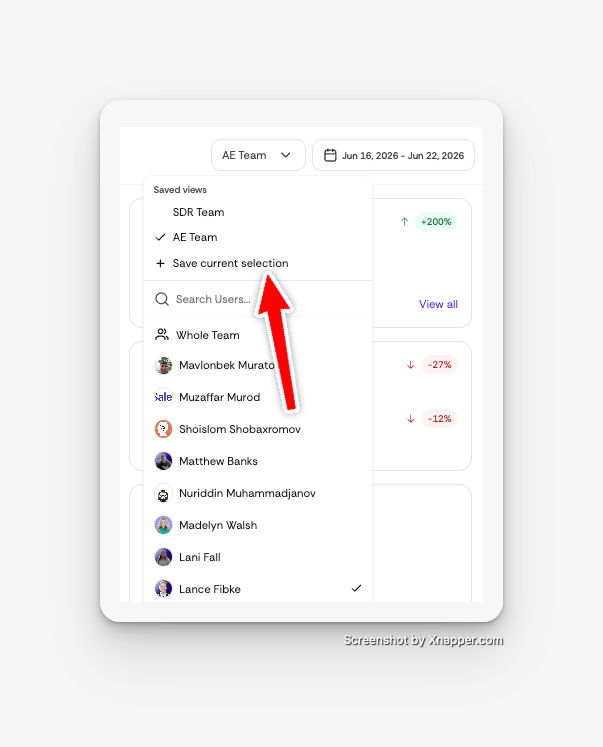
Saved Views and date range work together. Your view controls who you're looking at; the date range controls when. Switching views keeps whatever date range you've selected, so you can flip between teams without resetting your timeframe.
Step 1: Build a view
A view is just a saved selection of reps. To create one:
Click the team selector at the top of Analytics.
Use Search Users… to find reps, or scroll the list and click the people you want to include. A checkmark appears next to each rep you've selected.
Once your selection looks right, click + Save current selection.
Give the view a name — something that maps to how your team is organized, like Enterprise, Mid-Market, UK Team, or SDR Team.
Your new view now appears at the top of the panel, ready to use any time.
Tip: Name views by the way you actually think about your team — by segment, region, pod, or manager. The clearer the name, the faster the switch.
You'll also see a Whole Team option at the top of the user list. Use it any time you want to zoom back out to everyone.
Step 2: Set a default view
If there's one view you check most often, star it so it loads automatically every time you open Analytics.
Open the team selector.
Hover over the view you want as your default.
Click the star icon next to its name.
That view is now your starting point. You can change your default any time by starring a different view.
Step 3: Switch between views
This is the part that saves you time day to day.
Click the team selector.
Click any saved view in the list.
The dashboard instantly updates to show only those reps. A checkmark marks the view that's currently active, so you always know which segment you're looking at. No re-selecting reps, no scrolling past people you don't manage — one click and you're on your team.
Editing and removing views
Need to add a rep to a team, or retire a view you no longer use?
Add or remove reps: Open the view, adjust your selection in the user list, then save it again as your current selection.
Rename or delete: Open the team selector and manage the view from the Saved Views panel.
Frequently asked questions
Who can create Saved Views? Admin users with access to Analytics can build and save their own views. Views are personal to your account, so building one won't change what your teammates see.
Is there a limit to how many views I can save? No — create as many as you need. Most managers keep a handful that match their segments or pods.
Will a saved view update automatically when I add a new rep to the team? A view is a fixed selection of reps. When someone new joins, open the relevant view, add them to the selection, and save it again.
Can I share a view with another manager? Views are tied to your own account today. If a teammate wants the same segment, they can recreate it in a few seconds using the same steps.
Have a question this article didn't answer? Reach out to our team — we're happy to help.