How to Modify and Customize Call Dispositions in Salesfinity
Last updated: April 22, 2026
Salesfinity gives you complete control over how call outcomes are logged. Whether you're adjusting terminology or adding new workflows, customizing dispositions helps your team stay aligned — and your reporting stay clean.
📍 What Are Dispositions?
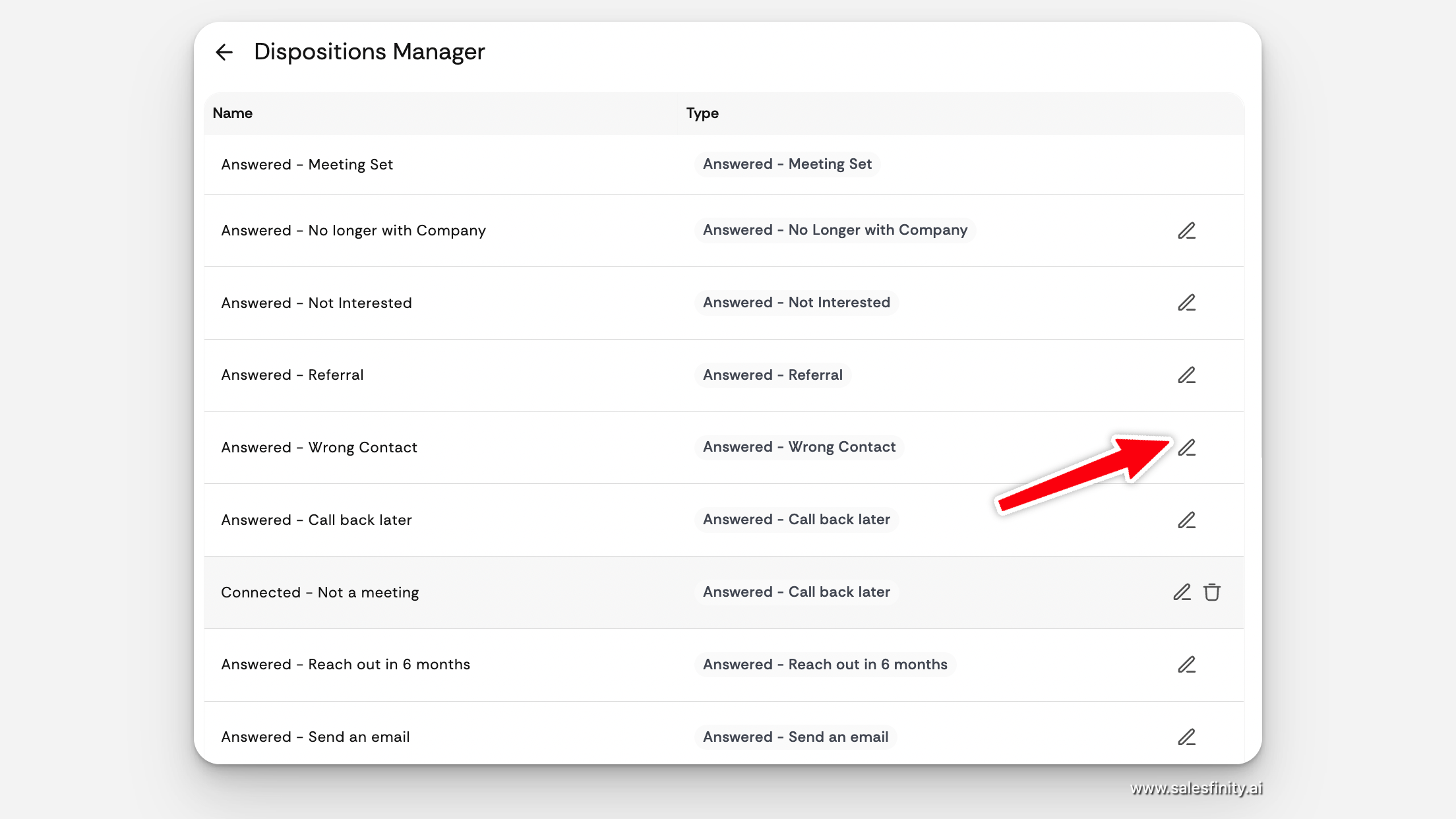
Dispositions are the outcomes your reps select after a call (e.g. Meeting Set, Not Interested, Call Back Later).
Each disposition includes:
Name: What reps see in the dialer UI.
Type: Internal tag used by Salesfinity for reporting, analytics, and automation.
✨ How to Edit or Add Dispositions
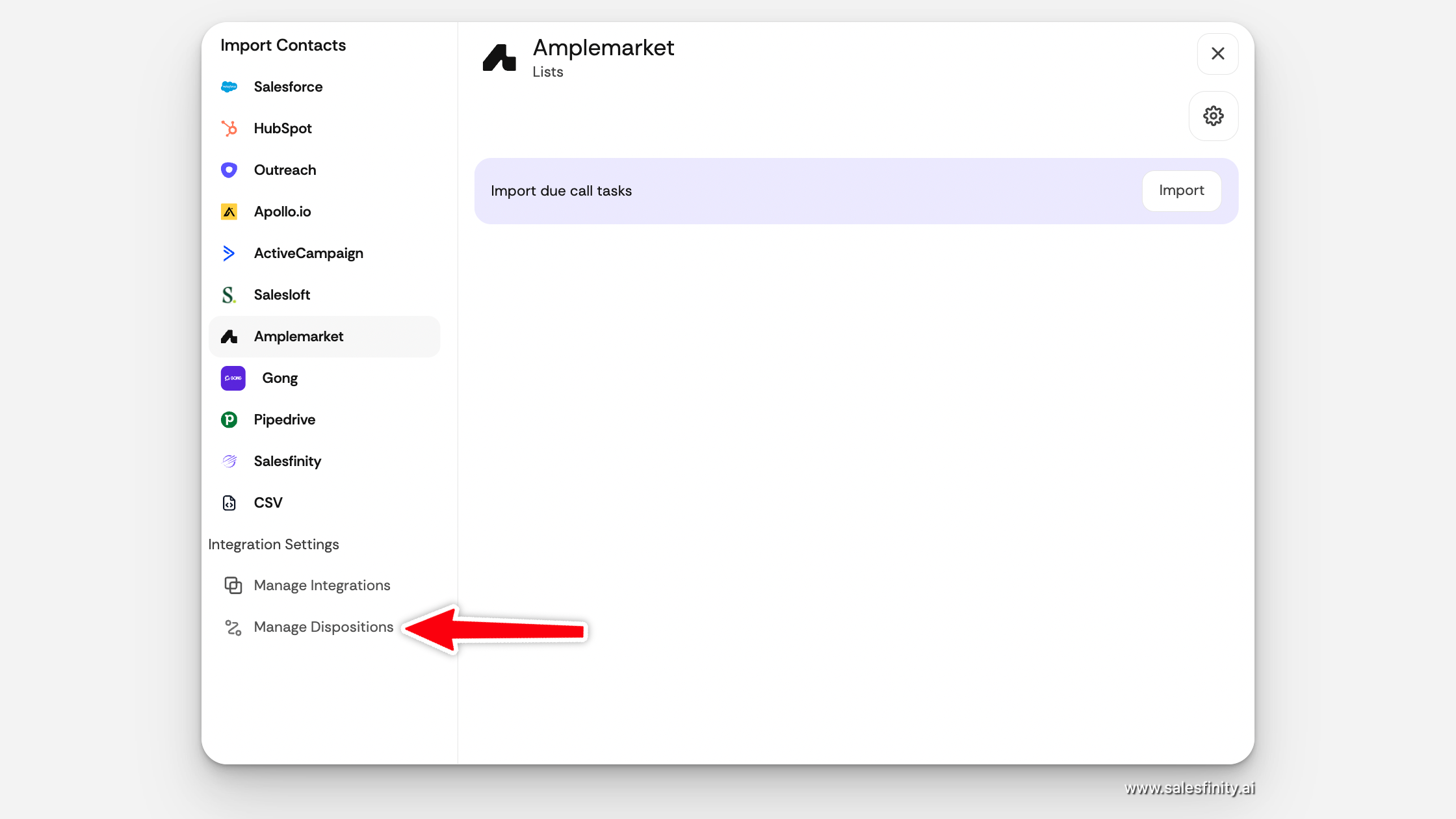
Click "Manage Dispositions" on Import Contacts page
Scroll to the bottom-left corner under Integration Settings.
Click Manage Dispositions.
Customize Your List
To edit an existing disposition: click the ✏ icon.
To add a new one: scroll to the bottom and click + Add New Disposition.
To remove one: click the 🗑 icon.
🎯 Tips for Setup
Use clear, rep-friendly names like “Send email” or “Follow up Q4.”
Assign the right Type so it syncs with Salesfinity’s analytics and workflows (e.g. “Answered – Meeting Set”).
You can have multiple names using the same disposition type if needed.
📊 Why It Matters
Your custom dispositions control:
Reporting on connects, conversations, and meetings
Follow-up automations via Nurture AI
CRM sync behavior
Objection tagging and AI coaching
✅ Examples
Disposition Name | Type |
Meeting Booked | Answered – Meeting Set |
Not a Fit – B2C | Answered – Not Interested |
Referred Me to James | Answered – Referral |
Call Back Q4 – High Intent | Answered – Call Back Later |
🙋 Need Help?
If you’re unsure which types to use, just chat with our team or email hello@salesfinity.co. We’re happy to review your setup.